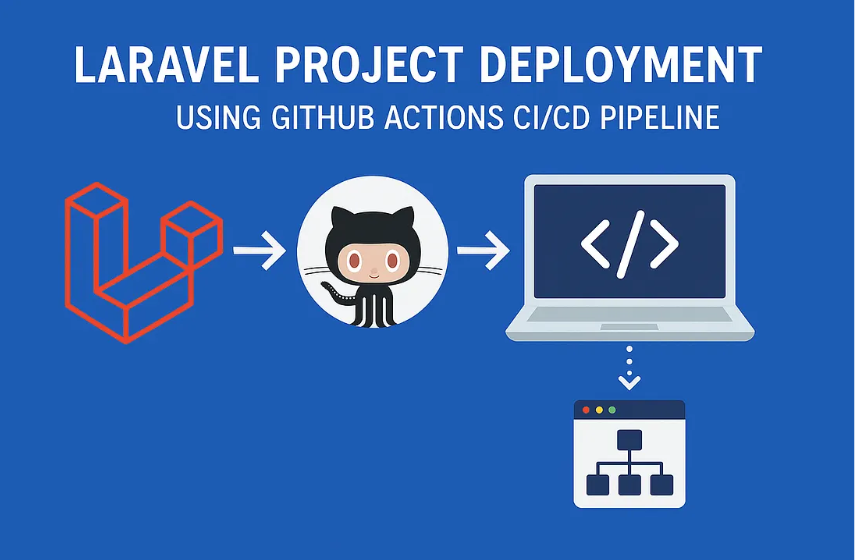
A step-by-step guide to setting up a CI/CD pipeline for Laravel using GitHub Actions, tailored for Namecheap’s shared hosting environment.
Introduction
Deploying a Laravel application can feel like a chore, especially on shared hosting like Namecheap, where resources are limited and automation is not always straightforward. I have been there — manually FTP-ing files, running composer install via SSH, and praying the database migrations don’t break. But there is a better way: GitHub Actions.
In this article, with help from AI to craft this guide, I will walk you through setting up a CI/CD pipeline to deploy your Laravel project to Namecheap shared hosting using GitHub Actions. We will use a battle-tested deploy.yml workflow, handle SSH securely, and optimize for Laravel’s needs. Whether you are a solo developer or managing a client project, this guide will save you time and headaches.
Why GitHub Actions for Namecheap?
Namecheap’s shared hosting is affordable and reliable but lacks native CI/CD support. GitHub Actions bridges that gap by:
- Automating deployments: Push to master, and your app updates in minutes.
- Simplifying SSH: Securely connect to Namecheap’s servers without manual logins.
- Optimizing Laravel: Run composer, migrations, and cache commands automatically.
Let’s dive into the setup.
Prerequisites
Before we start, ensure you have:
- A Laravel project hosted on GitHub.
- Namecheap shared hosting with SSH access enabled (check your cPanel under “Advanced” > “SSH Access”).
- A domain or subdomain pointing to your hosting’s public directory (e.g., public_html or a subdirectory).
- Basic familiarity with GitHub and SSH.
Step 1: Set Up Your Repository
- Push Your Laravel Project to GitHub
If your project isn’t already on GitHub, initialize a repository and push it:
git init
git add .
git commit -m "Initial commit"
git remote add origin <your-repo-url>
git push -u origin master
2. Prepare Your Hosting Environment
On Namecheap, SSH into your hosting account (use the SSH details from cPanel). Create a directory for your Laravel app outside public_html (e.g., ~/my-laravel-app). Clone your GitHub repository there:
git clone <your-repo-url> ~/my-laravel-appPoint your domain to the public folder (e.g., ~/my-laravel-app/public) via cPanel’s “Domains” or .htaccess.
3. Install Dependencies
Manually run composer install in ~/my-laravel-app to ensure your hosting’s PHP version is compatible. Set up your .env file with database credentials and APP_URL.
Step 2: Configure SSH for GitHub Actions
Namecheap uses a non-standard SSH port (21098), which requires careful setup. We will store SSH credentials securely in GitHub Secrets.
- Generate an SSH Key Pair
- In Namecheap’s cPanel, go to “Advanced” > “SSH Access” > “Manage SSH Keys.” Click “Generate a New Key”:
- Use the default key name (e.g.,
id_rsa) or specify one. - Set a strong passphrase (optional but recommended).
- Generate the key.
Once generated, click “View/Download” next to the private key (id_rsa). Copy the private key content — this is your SSH_PRIVATE_KEY. Also, ensure the public key is authorized in cPanel by clicking “Manage” next to it.
Note: If you prefer generating keys locally, run:
ssh-keygen -t rsa -b 4096 -C "your-email@example.com"Then upload the public key (~/.ssh/id_rsa.pub) to cPanel under “Manage SSH Keys” and use the local private key as SSH_PRIVATE_KEY.
2. Add Secrets to GitHub
In your GitHub repository, go to Settings > Secrets and variables > Actions > New repository secret. Add:
- SSH_PRIVATE_KEY: Paste the contents of
~/.ssh/id_rsa(the private key). - SSH_HOST: Your hosting server (e.g.,
yourdomain.comor the server IP from cPanel). - SSH_USER: Your cPanel username.
- DEPLOY_PATH: The path to your app (e.g.,
~/my-laravel-app).
Step 3: Create the GitHub Actions Workflow
Now, let’s set up the deploy.yml file to automate deployment. This workflow triggers on pushes to the master branch, connects to your server via SSH, pulls the latest code, and runs Laravel’s deployment commands.
Create a file at .github/workflows/deploy.yml in your project directory and add the following:
name: Deploy to Shared Hosting

on:
  push:
    branches:
      - master

jobs:
  deploy:
    runs-on: ubuntu-latest

    steps:
      - name: Checkout code
        uses: actions/checkout@v2

      - name: Setup SSH
        env:
          SSH_PRIVATE_KEY: ${{ secrets.SSH_PRIVATE_KEY }}
        run: |
          mkdir -p ~/.ssh
          echo "$SSH_PRIVATE_KEY" > ~/.ssh/id_rsa
          chmod 600 ~/.ssh/id_rsa
          ssh-keyscan -p 21098 -H ${{ secrets.SSH_HOST }} >> ~/.ssh/known_hosts

      - name: Deploy Application
        env:
          SSH_HOST: ${{ secrets.SSH_HOST }}
          SSH_USER: ${{ secrets.SSH_USER }}
          DEPLOY_PATH: ${{ secrets.DEPLOY_PATH }}
        run: |
          ssh -p 21098 $SSH_USER@$SSH_HOST "
            cd $DEPLOY_PATH || exit;
            git pull origin master;
            composer install --no-interaction --prefer-dist --optimize-autoloader;
            php artisan migrate --force;
            php artisan db:seed;
            php artisan config:cache;
            php artisan route:cache;
            php artisan view:cache;
          "
Step 4: Test Your Deployment
- Commit and Push
Add the .github/workflows/deploy.yml file, commit, and push to master:
git add .github/workflows/deploy.yml
git commit -m "Add GitHub Actions deployment workflow"
git push origin master
2. Monitor the Workflow
Go to your GitHub repository’s Actions tab. You will see the “Deploy to Shared Hosting” workflow running. If it fails, check the logs for errors (e.g., wrong SSH host or path).
3. Verify on Hosting
Visit your app’s URL to ensure it’s live. Check the database for applied migrations and cached files (e.g., bootstrap/cache/config.php).
Troubleshooting Tips
- SSH Errors: Verify the
SSH_HOST,SSH_USER, and port (21098). Ensure the public key is added to Namecheap’s SSH manager. - Permissions: Ensure the DEPLOY_PATH directory is writable by your SSH user.
Bonus: Optimize for Namecheap
- Use PHP 8.1+: Namecheap supports recent PHP versions. Set it in cPanel’s “Select PHP Version” for Laravel compatibility.
- Secure Your .env: Don’t commit .env to GitHub. Manually place it on the server and exclude it with .gitignore.
- Cache Everything: The workflow caches configs, routes, and views to boost performance on shared hosting’s limited resources.
- Monitor Logs: Check storage/logs/laravel.log if something breaks post-deployment.
Conclusion
Deploying Laravel to Namecheap shared hosting doesn’t have to be a manual slog. With GitHub Actions, you can automate the process, from code updates to database migrations, in a few minutes. The deploy.yml workflow we covered is lightweight, secure, and tailored for Namecheap’s quirks (like that pesky port 21098).
Try this setup on your next project, and let me know how it goes! Have a better deployment trick or run into a snag? Drop a comment below — I’d love to hear from you.
If this guide saved you time, give it a clap 👏 and share it with other Laravel developers. Follow me for more practical tips!
Written by Anthony Shoshi Gomes
Anthony, a passionate software engineer, loves coding, innovating, and learning.
I share findings, value feedback, and connect to inspire progress.